
Information Security and Data Protection staff training - Frequently Asked Questions (FAQs)

If you can’t find an answer to your question about the University's Information Security and Data Protection training below, contact the Governance, Risk and Compliance team in Information Security at grc@infosec.ox.ac.uk for further support. 

Questions about the training

Expand All

All staff and anyone with access to University systems, email, or data must complete the training, which has been mandatory for many years. 

The training helps to protect you, your colleagues and the wider University community, as well as organisations we work with, from cyber threats such as phishing, fraud, ransomware or data breaches. It helps us to manage risk, and safeguard people’s learning, research, administration, personal data, and the systems and services that enable the University’s core mission.  

If you remain non-compliant after being sent repeated reminders ahead of your annual renewal date, and your department or college have not advised Information Security of any special mitigating circumstances (such as ongoing leave), you risk your University email access being suspended until the training is completed. 

Speak to your line manager in the first instance. Alternative arrangements or reasonable adjustments can be made to help you complete the required training. Your manager may wish to get advice from Information Security at grc@infosec.ox.ac.uk.

Yes. Any user of the University’s digital systems can become a victim of a cyber-attack, regardless of how often they use them, so all users must complete the training to ensure a consistent baseline of awareness.

No. If you work for a department or faculty and a college, for example, you only need to take the University’s training course once every 12 months. Once you’ve received the certification of completion at the end of the course, the University’s training records that are used to monitor compliance will reflect the fact you have completed it. 

Anyone who is new to the University is expected to complete the training course within their first three months of joining (and every 12 months thereafter). This requirement is unchanged. 

No. All staff must complete the University's approved Information Security training because it is specific to the Oxford context. This applies if you have completed similar training elsewhere. 

You can review your training status through MetaCompliance (the third-party supplier of the University's security training), or contact your HR manager if you are unsure. 

To check the date you last completed the training: 

  1. Select the ‘Take the staff training’ button on this webpage to access the course on the MetaCompliance platform. 

  1. Select the ‘Home’ icon. 

  1. Select ‘Certificates’. 

  1. Note the issue date of your most recent Information Security and Data Protection certificate. Your renewal deadline will be 12 months from that date. 

If you believe you have completed your training within the last 12 months but there is no record of a certificate of completion when you use the steps above to check your training status, it is likely that you participated in the course but didn’t continue right to the end of the training or pass the assessment questions. In this case, you should either take the course again and ensure that you complete it, or contact Information Security at grc@infosec.ox.ac.uk if you have any questions or concerns.

Yes. If you have not completed your Information Security training in the last 12 months, you will receive monthly reminders from Information Security, for a period of three months before your annual renewal deadline. This will include information about what you need to do, when and why. 

The Head of Administration and Finance (HAF) or senior administrator in your department, faculty or college (or their nominated represented) will also be notified monthly that you have not yet complied with the requirement to complete the training annually.

You should complete the training as soon as possible, then  raise a help ticket through IT Self-Service online or call the central IT Service Desk on 01865 (6)12345 to request re-enablement. Access may take up to two working days to be restored after verification. 

No. Any suspension will only affect your University email access. Other systems, applications, and Single Sign-On (SSO) services will remain available.

How do I...?

Expand All

We recommend using Edge, Chrome or Safari.

There is a known issue with viewing the communications documents in Firefox, which we are working with MetaCompliance to fix.

Remember, the course requires you to open new windows. Some browsers will block this feature, so before you start the training, go to your browser’s settings and set your browser's settings to Open in a new tab.

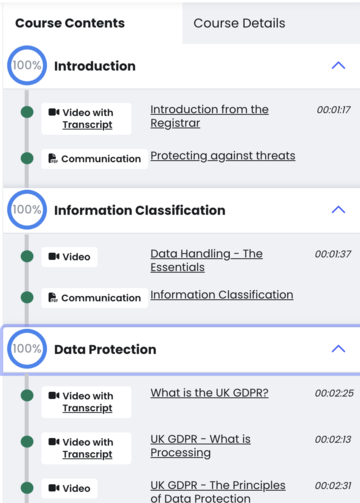
The new staff training requires the user to watch each video from start to finish. It also requires you to click 'Next' on the text section of the Communication. This must be done for each section. When you have done this, a green dot will appear on the left-hand side next to the section you have just completed. 
screenshot 2024 02 07 at 10 26 30


Once each section has been completed, and you have passed the quiz, you will receive a green success notice. Please remember, if you do not receive a Success Notice, please ensure you have completed the course from start to finish. Partial completion does not suffice.

mceclip0

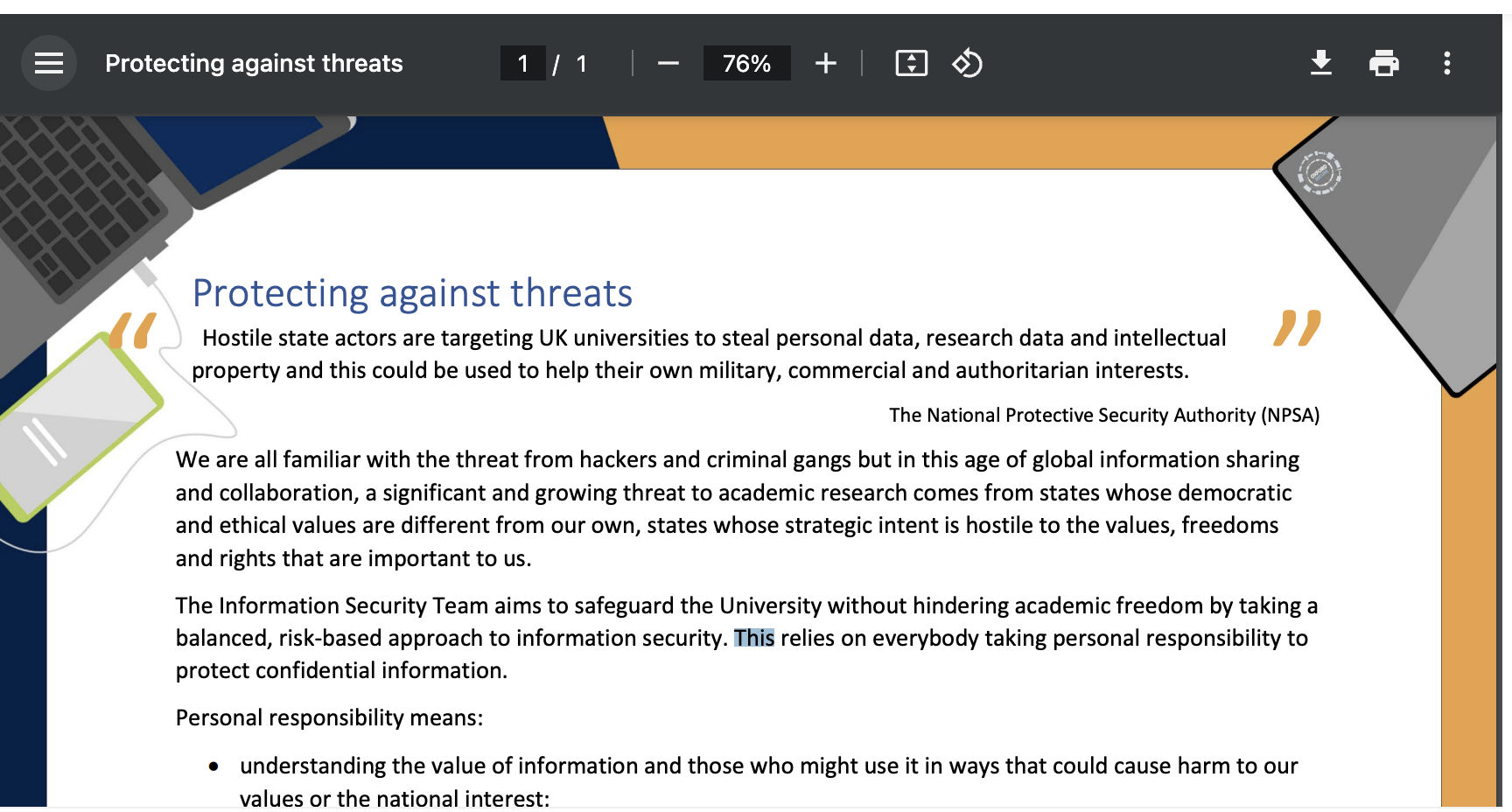
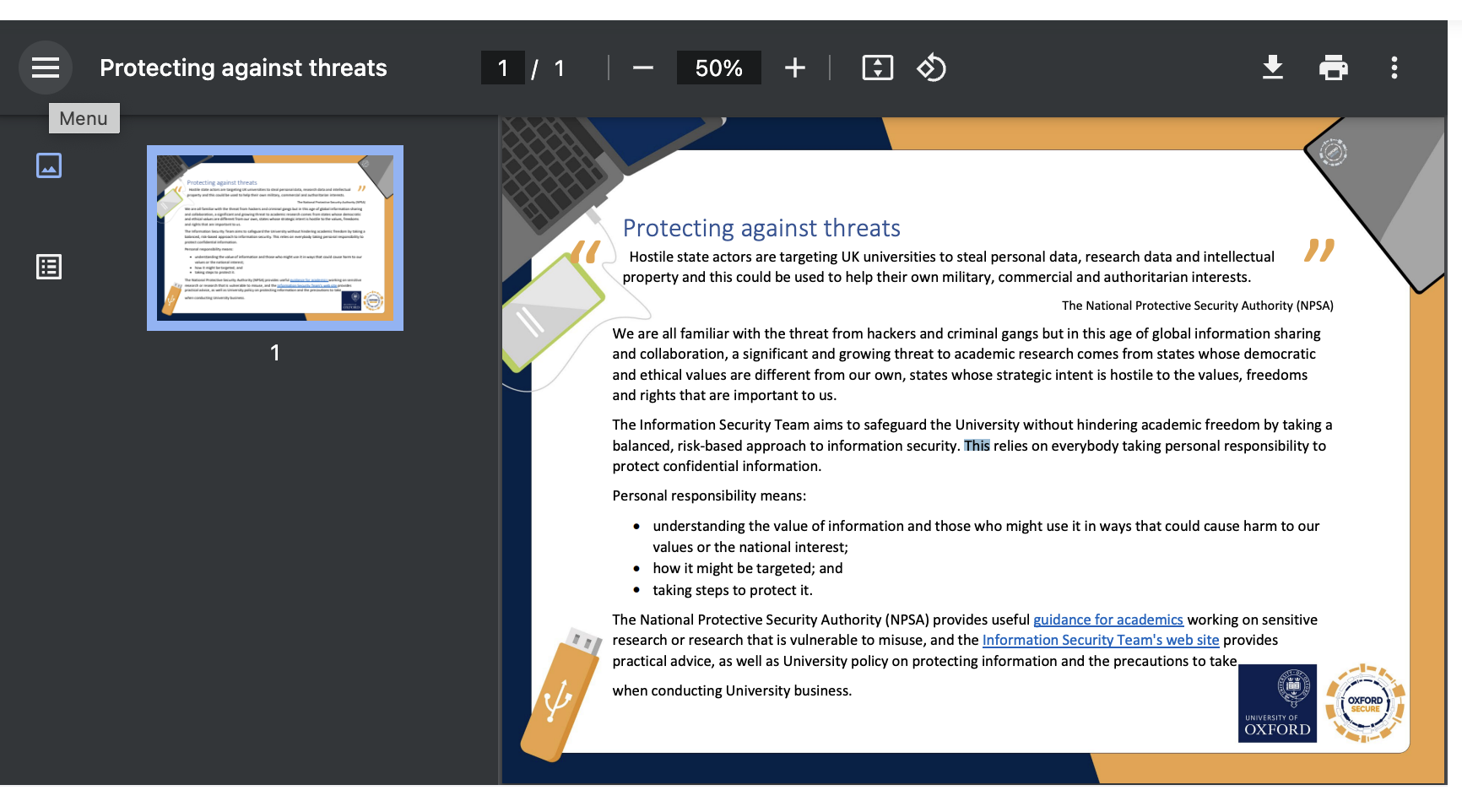
Yes, you can. On the top left-hand side of the grey frame, there is an icon which looks like three lines on top of each other. Click on that icon and the Communication will go to full size within the frame. 

To revert back to the view in step 1, click on the same icon again.

Step 1
screenshot 2024 02 07 at 13 22 07


Step 2

screenshot 2024 02 07 at 13 22 16


Watching the videos is a key part of the training so you can’t skip them although for those people who are more confident on this content you can play them at double-speed.

The training takes up to 45 minutes, but it will be different for different people. 

Yes, you can. Your progress will be saved at the last piece of content you have completed. 

Unfortunately, the course is currently only availble in English, but it is on the development roadmap to deliver the training course in other languages.

Here are the steps that you can take to download your certificates from MetaCompliance.

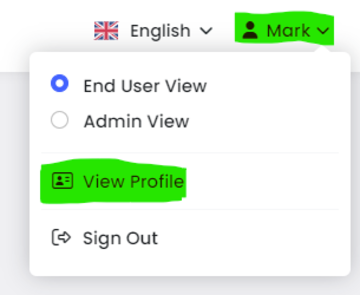
  1. Log in to the training and click on the 'Arrow' icon at the top right-hand side of the screen, and select View Profile
    mc step
  2. Scroll down to My Training, and click on the '+' icon
  3. Select the 'Completed' tab to view your completed courses. (Use the arrows to scroll across completed courses to find a specific course with a completion certificate)
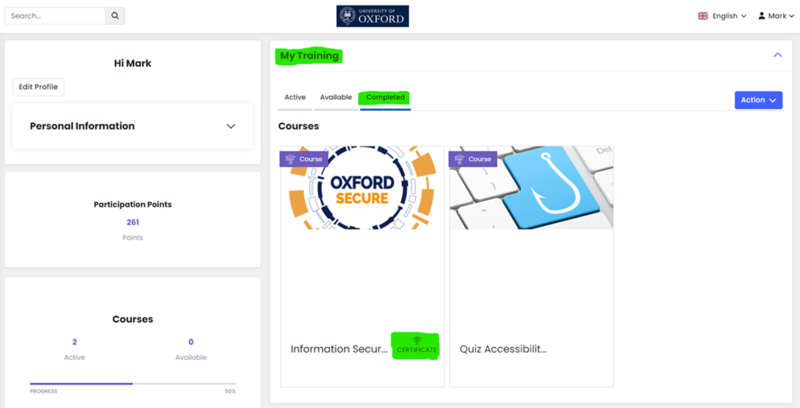
    mc step
  4. Once found, click on the appropriate certificate. This will then populate on to a separate window in browser
  5. The Completion Certificate can now be downloaded.

More information can be found on the MetaCompliance website.

Getting help


Please contact the IT Service Desk team on 01865 (6)12345 with any technical or IT support queries

Related links